How to see fixed speed cameras and activate the speed camera alert in Google Maps
 Mónica Redondo @MonicaRedondoD
10 May 2021
2 min.
Mónica Redondo @MonicaRedondoD
10 May 2021
2 min. 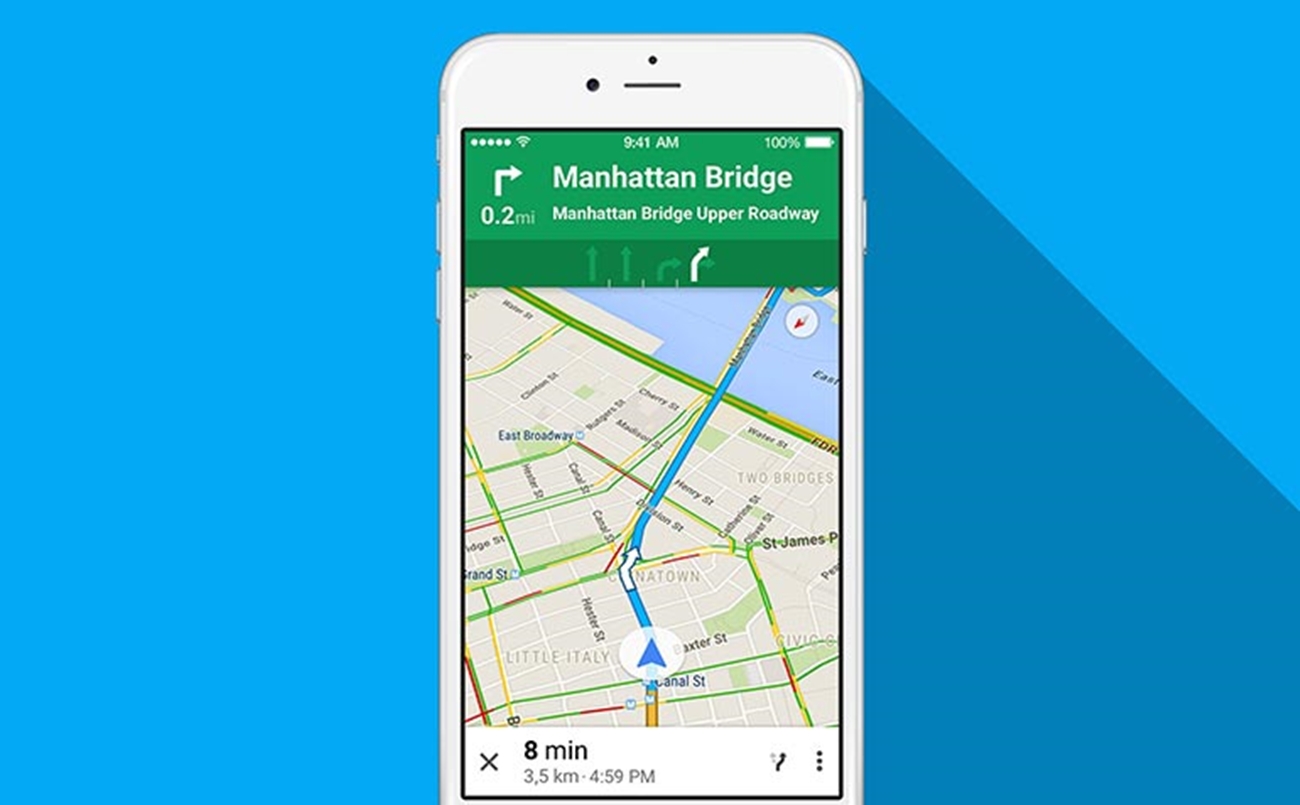
Did you know that you can see fixed speed cameras and activate the speed camera alert in Google Maps? Here’s how to do it!
How can you see fixed speed cameras and activate the speed camera alert in Google Maps? It’s a very simple process and it will give you extra information while you drive. In 2013, Google acquired Waze and from there began to catch up, adding information about everything happening on the roads: accidents, stopped vehicles on the hard shoulder, traffic jams, speed cameras, and so on. Thanks to this, Google Maps offers information about the presence of fixed speed cameras.
The Spanish Directorate-General for Traffic (DGT) publishes a list showing the location of fixed speed cameras. This information is public and all drivers can access it. The only thing that is not public is the location of mobile speed cameras, as that is not within the law. Google Maps began warning about fixed speed cameras in May 2019 through a sound alert. Google draws on a database that is constantly updated. The only thing you need to do to know about fixed speed cameras and activate the alert in Google Maps is to configure the app correctly.
This is how Google Maps is set up
The first step is to download the Google Maps app if you don’t have it on your smartphone yet. Once downloaded, open it. It is very intuitive to use: you just type the address you want to go to into the search bar. At that point two options will appear: Start or Directions. If we choose Directions, Maps will show the different routes available to reach the destination. If you select the car icon, Google will show you a preview of the routes, again with the fixed speed cameras displayed.
If you tap Start directly, you won’t have prior information about the location, but it will alert you while you are driving. The app also includes a speed camera warning. Because it is a GPS navigation app, the speed camera warning works just like a turn-by-turn direction. When you are a few metres away from a fixed speed camera, Google Maps will sound an audio signal.
For the app to work properly, you need to have the app configured. If not, go to the menu (the icon with three lines in the top left corner), look for Settings, then Navigation settings, Sound and voice. From then on, you just need to choose the volume for Google Maps directions and make sure the speaker on the main screen is turned on. This way, you will be able to know the location of fixed speed cameras and activate the alert.


 Peugeot E-208 GTi: a battery-powered toy that revives the spirit of the 1980s sports cars
  New Lexus ES: luxury grows and goes electric
  First contact with the Dacia Sandero Hybrid 155: power and efficiency from €19,890
 Deja un comentario